
With a few smart tests, you can see whether the issue is speed, latency, Wi-Fi, or network crowding. That makes the next step much clearer.
Why does your streaming quality change even when you have internet?
Your streaming quality can change because speed is only one part of the experience. A connection may look fine for browsing but still struggle with high-resolution video if download speed dips, latency rises, Wi-Fi weakens, or multiple devices compete for bandwidth. A broadband speed test helps show whether your connection can support the way you really use it.
Streaming platforms also adjust on the fly. If your connection slows down, the service may lower the resolution, pause to buffer, or take longer to start playback. That is why a streaming quality test or video speed test is useful. It links the numbers on the screen to what you see on your TV, laptop, phone, or tablet.
GrandSpeed is built for practical checks, not guesswork. Instead of wondering whether the problem is your router, your plan, your Wi-Fi signal, or your device, you can start with measurable internet test speeds and work from there.
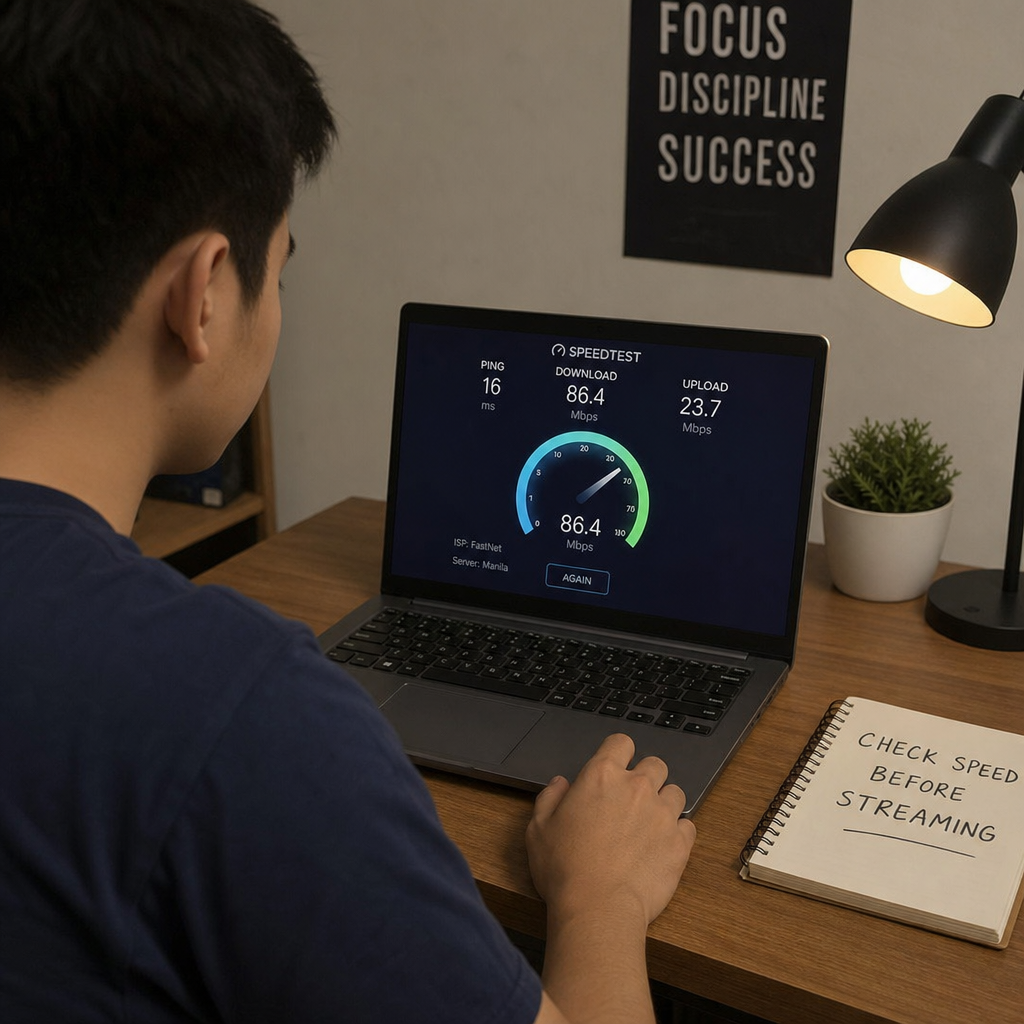
The speed numbers that matter most
A good speed test tool usually gives you several results. Each one shows a different part of the story, and understanding them can help you fix problems faster.
Download speed: This affects how quickly video data reaches your device. It is usually the most important number for movies, shows, live events, and short video.
Upload speed: This matters when you livestream, upload videos, join video calls, or share large files while others use the network.
Latency or ping: This measures responsiveness. It is especially important for online games, video calls, and other real-time tasks.
Jitter: This shows how steady your latency is. High jitter can create choppy calls, unstable gaming, or uneven livestream performance.
Connection consistency: A single high result is nice, but stable results across several tests are more useful for real-world streaming.
If you only look at the biggest number, you may miss the real issue. For example, a strong download speed with high latency might handle recorded video well but feel poor for cloud gaming or live chat. A high speed internet speed test is most useful when you look at the full picture.
What makes a speed test useful for streaming?
A speed test is useful for streaming when it reflects real viewing conditions, not an ideal case you never use. Run the test on the same device, in the same room, and on the same connection you use for streaming. That way, the results show what your setup is really getting.
For example, testing beside the router may produce excellent numbers, but your smart TV across the house may still buffer. A wired desktop may also show a strong result while a phone on crowded Wi-Fi struggles. GrandSpeed works best as an online speed checker when you use it where performance matters.
Try testing before and during common streaming times. Evening hours, busy households, downloads, software updates, and connected smart devices can all change performance. If your results drop at the same time your video quality drops, you have a clearer place to start.
How to run a better broadband speed check
A broadband speed check only takes a moment, but a few simple habits can make the results more reliable. The goal is not just to get the highest number. It is to learn what your connection does under normal conditions.
Use this quick process:
Choose the right device. Test on the device you use most for streaming, such as your smart TV, laptop, tablet, or phone.
Check your connection type. Note whether you are using Wi-Fi, Ethernet, or mobile data. Wired and wireless connections often behave differently.
Pause heavy background activity. Downloads, backups, app updates, and other streams can affect the result.
Run more than one test. One result is a snapshot. Several results show whether your internet test speeds are steady or inconsistent.
Test in different locations. If one room performs poorly, the issue may be Wi-Fi coverage rather than your broadband plan.
Compare normal and problem times. Test when streaming works well and when it buffers. The difference can be very revealing.
This turns a basic internet speed test into a more useful diagnostic habit. You are not just asking if your internet is fast. You are asking if your connection is good enough, in this place, at this time, for what you want to do.
Streaming, gaming, and video calls need different strengths
Not every online task uses your connection in the same way. Streaming a movie, joining a live meeting, and playing an online game all depend on internet performance, but they stress different parts of the connection.
For streaming video, download speed and consistency usually matter most. If the connection drops, the video may buffer or switch to a lower resolution. A video speed test helps you see whether your current connection can support the quality you want.
For gaming, responsiveness is often the bigger issue. A gaming speed test should make you watch ping, jitter, and stability, not just download speed. You can download a large game quickly and still feel lag if the connection is uneven.
For video calls and livestreaming, upload speed matters more. Weak upload speeds can make your video freeze, blur, or fall behind. Testing before an important meeting, class, webinar, or live broadcast gives you time to adjust your setup.
Practical fixes when your results are lower than expected
If GrandSpeed shows slower speeds than you expected, do not jump straight to a new plan. Many common issues can be fixed with small changes at home or in the office.
Start with these practical steps:
Move closer to the router. Walls, distance, appliances, and furniture can weaken Wi-Fi.
Restart your router and device. A fresh connection can clear temporary problems.
Use Ethernet when possible. A wired connection is often more stable for smart TVs, gaming consoles, and workstations.
Reduce network crowding. Pause large downloads, cloud syncs, or extra streams when you need the best performance.
Update devices and apps. Old software can cause playback or connection issues that look like internet problems.
Check router placement. A central, open spot usually works better than a cabinet, floor corner, or hidden shelf.
Test another device. If only one device is slow, the issue may be local to that device, not your broadband connection.
After each change, run another broadband speed test. That gives you quick feedback and helps you see what actually worked.
How often should you test your internet speed?
You should test your internet speed whenever performance changes, before important online activity, and from time to time during normal use. Regular testing gives you a baseline, so unusual slowdowns are easier to spot. You do not need to test all the time, but a quick check can save a lot of guesswork.
A sensible routine might include testing after a new router, a plan change, a device move, new smart home gear, or buffering during peak hours. You can also test before a livestream, a major event, or a high-stakes video call.
Think of GrandSpeed as a simple maintenance tool. Just as you might check battery life before you leave home, you can check your connection before you rely on it for entertainment, work, or play.
Making sense of inconsistent results
It is normal for speed test results to vary. Networks change with device load, Wi-Fi conditions, time of day, and background traffic. What matters is whether the change affects your experience.
If one test is low but the next few are strong, the problem may have been temporary. If every test from one room is poor, your Wi-Fi coverage may need attention. If all devices show weak results at several times of day, it may be worth checking your router, modem, plan, or provider support.
Keep notes if the problem repeats. Record the time, device, connection type, and what you were doing. Those details make your online speed checker results more useful if you need help from a household member, IT contact, or internet provider.
A simple checklist for smoother streaming
Before your next movie night, livestream, class, meeting, or game session, use this checklist to improve your odds of a smooth connection:
Run GrandSpeed on the device you plan to use.
Confirm whether Wi-Fi or Ethernet gives you better stability.
Close unnecessary apps, downloads, and browser tabs.
Move your device or router if the signal is weak.
Test again after making changes.
Watch for patterns across different times of day.
Use the results to decide whether you need a setup change, a router adjustment, or a call to your provider.
This kind of routine is simple, but it helps you move from frustration to action. Instead of guessing why your stream is blurry or your game is lagging, you can use clear results to guide the next step.
Better streaming starts with better visibility
A reliable connection is easier to manage when you can see how it is performing. GrandSpeed helps you run a quick internet speed test, compare results over time, and understand whether your connection is ready for streaming, gaming, video calls, and everyday browsing.
Use it when your video buffers, your games lag, your calls stutter, or you simply want to confirm that your setup is ready. The clearer your view of speed, stability, and connection quality, the easier it is to get the best result from the internet you already have.
Q&A
Question: Why should I run GrandSpeed on the same device I use for streaming?
Short answer: It gives you a more realistic view of your actual streaming experience. A laptop near the router may show strong speeds, while a smart TV in another room may face weak Wi-Fi or interference. Testing where you watch, game, or call shows the performance your device really gets.
Question: Is download speed the only number that matters for streaming?
Short answer: No. Download speed is usually the most important number for movies, shows, and live events, but latency, jitter, and consistency also matter. A high speed internet speed test can still hide lag, choppy calls, or poor real-time performance.
Question: What should I do if my speed test results change throughout the day?
Short answer: Some variation is normal because networks change with time of day, device use, Wi-Fi conditions, and background activity. Test during both good and bad periods, then compare the results. If slowdowns keep happening during peak hours or in one room, you may need to adjust Wi-Fi placement, reduce network crowding, use Ethernet, or contact your provider.
Question: Should I upgrade my internet plan if GrandSpeed shows slower speeds than expected?
Short answer: Not right away. First, try simple fixes such as restarting your router, moving closer to it, using Ethernet, pausing downloads, updating devices, or testing another device. If speeds stay weak across multiple devices, rooms, and times of day, then it may be time to review your router, modem, plan, or provider support options.
Question: How can GrandSpeed help before an important video call, livestream, or gaming session?
Short answer: It gives you time to spot problems before they affect the activity. For video calls and livestreaming, check upload speed and stability. For gaming, pay attention to ping, jitter, and consistency. Testing ahead of time lets you switch to Ethernet, close background apps, move closer to the router, or make other changes before the session begins.