
Most residential connections are built asymmetrically, meaning your plan gives you far more download bandwidth than upload bandwidth on purpose. But plan limits aren't the only culprit. Router congestion, Wi-Fi interference, background apps syncing to the cloud, and even bufferbloat on a loaded connection can all choke your upload throughput well below what you're paying for.
This guide walks through the real reasons your upload speed tanks, from ISP tier limits to router settings to peak-time congestion, and gives you concrete steps to diagnose which one applies to you. Along the way, you'll see how running a full connection test, not just a basic download check, on a tool like GrandSpeed shows you upload speed, loaded latency, and jitter together, so you can pinpoint the actual bottleneck instead of guessing.
Why upload speed lags behind download speed
Asymmetric connections by design
Most home internet plans aren't built to treat uploads and downloads equally. ISPs design their networks around asymmetric bandwidth, giving you a much bigger pipe for downloads because that's what most households use most: streaming video, loading web pages, downloading updates. Upload traffic used to be an afterthought, mostly small stuff like sending emails or uploading a photo. So when your upload speed is slow, it's often not broken. It's working exactly as your plan allows, just at a fraction of your download number.
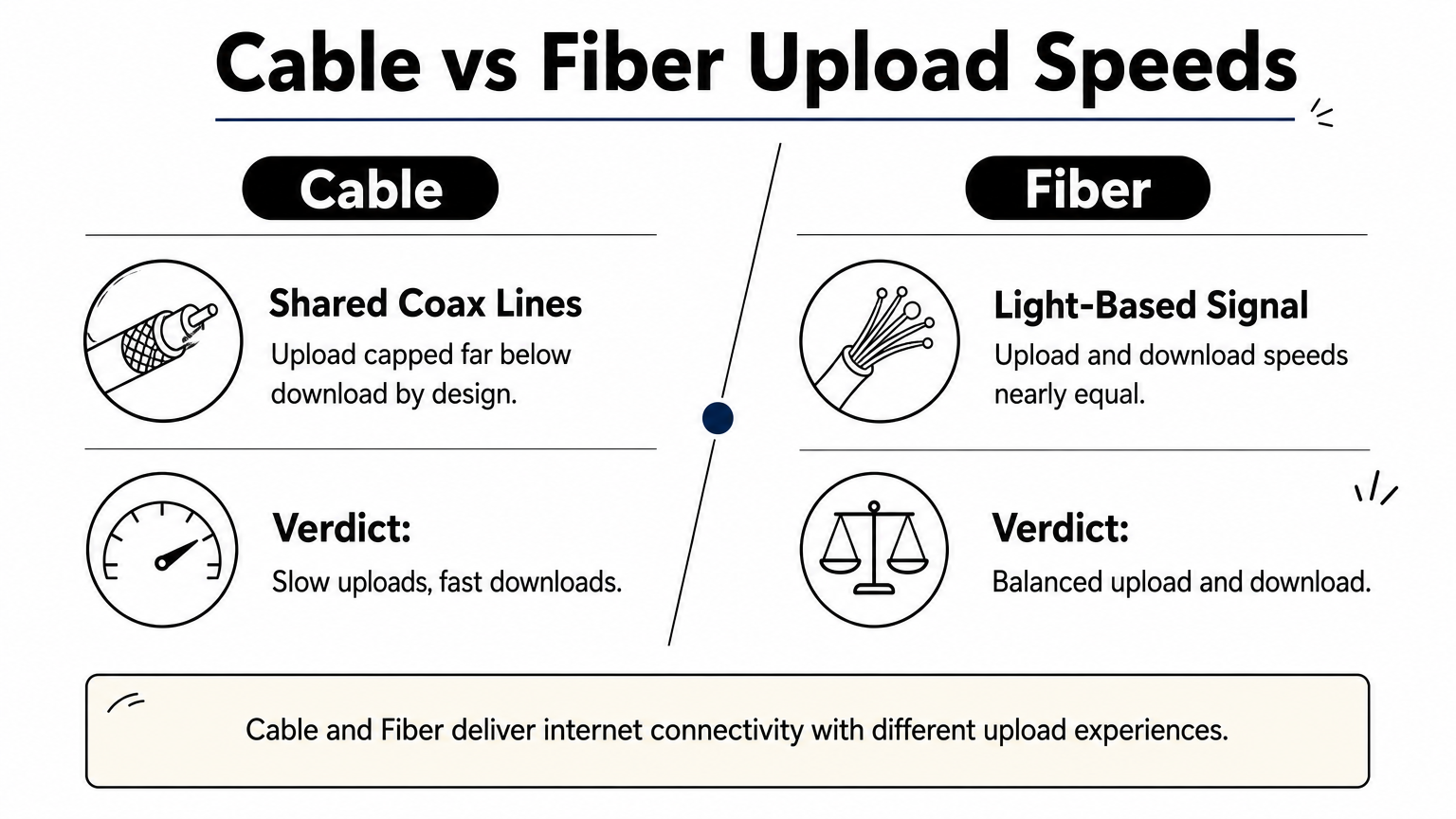
Slow upload speed usually isn't a malfunction, it's how your plan was built.
How connection type shapes the ratio
The technology behind your connection determines how lopsided that ratio gets. Cable internet, which runs on shared coaxial lines using DOCSIS technology, typically allocates far less capacity to upload than download. DSL, running over old copper phone lines, has similar constraints baked into the standard. Fiber is the outlier: because it uses light instead of electrical signals, providers can offer symmetric or near-symmetric speeds without much added cost, which is the core difference between cable and fiber optic technology.
| Connection type | Typical download | Typical upload | Ratio |
|---|---|---|---|
| DSL | 25-100 Mbps | 5-20 Mbps | ~5:1 |
| Cable | 100-1000 Mbps | 10-50 Mbps | ~10:1 to 20:1 |
| Fiber | 300-2000 Mbps | 300-2000 Mbps | ~1:1 |
Satellite connections, like older geostationary services, tend to have the worst upload numbers of all, since bandwidth is heavily prioritized for downstream data. If you're on cable or DSL and your internet upload speed feels capped no matter what you do, check your plan's advertised upload figure first. Many people assume a "500 Mbps" plan means 500 up and down, when the fine print shows uploads sitting at a tenth of that.
Step 1. Test your current upload speed
Before you touch a single setting, get a real number. Guessing whether your upload speed is slow wastes time you could spend fixing the actual problem. Run a full test on GrandSpeed and look past the download figure. You want the upload number, plus loaded latency and jitter, because those three together tell you if you're dealing with a bandwidth cap or something worse: congestion that spikes the moment you start pushing data.
Run the test the right way
Close anything eating bandwidth first. Then test.
- Disconnect or pause cloud backups, game downloads, and streaming devices
- Test over a wired Ethernet connection if you can, then repeat over Wi-Fi
- Run the test three times at different points in the day (morning, peak evening, late night)
- Compare your result against the upload number listed on your ISP bill
If your measured upload speed sits far below your plan's advertised number, you've found your starting clue.
Read the results correctly
A single low reading during peak hours might just mean network congestion, not a broken connection. Consistent lows across every test window point to something more structural, and that's what the next steps help you isolate.
Step 2. Check your router, cables, and connections
Inspect your hardware first
Old or underpowered hardware quietly caps your upload throughput long before your plan does. A router more than five years old may not support the upload speeds your ISP now provides, especially if you've upgraded plans since buying it. Check for a worn Ethernet cable too. Cat5 cables max out well below what Cat5e or Cat6 can handle, and a cracked or bent connector can introduce packet loss you won't notice until you try uploading something large.
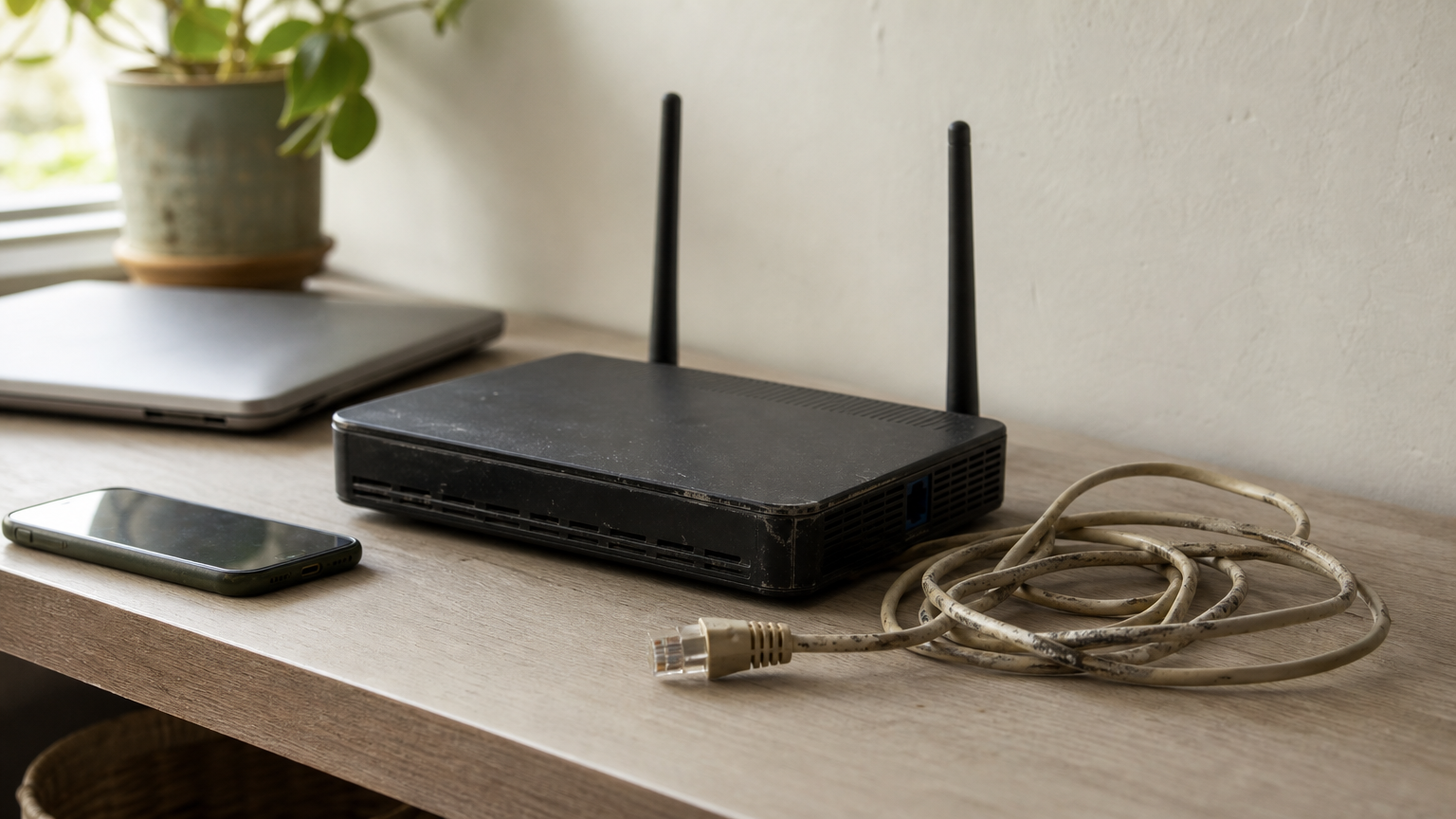
A five-year-old router is often the real reason your extremely slow upload speed has nothing to do with your ISP plan.
Rule out Wi-Fi interference
Wireless signals degrade fast with distance and obstacles, and that hits upload harder than download in many router configurations. Try these fixes in order:
- Move closer to the router or switch to a wired connection for the test
- Restart the router and modem, unplugged for 30 seconds
- Update router firmware through the manufacturer's app
- Switch from the 2.4GHz band to 5GHz if your router supports both
Each step rules out one more variable before you move to network-wide congestion.
Step 3. Cut congestion from devices and background apps
Even with solid hardware, a house full of connected devices can strangle your upload bandwidth before it ever leaves your network. Phones backing up photos, laptops syncing to cloud drives, and smart cameras uploading footage all compete for the same limited upload pipe, and that pipe is already smaller than your download one.
Find what's eating your upload bandwidth
Start by checking what's quietly running in the background right now.
- Pause cloud backup apps like Google Photos, iCloud, or OneDrive
- Check your router's admin page for a device list and bandwidth usage
- Close video calls or streaming software you're not actively using
- Turn off automatic app updates during work hours
If your upload speed is really slow only when multiple devices are active, congestion, not your ISP plan, is the real cause.
Schedule heavy uploads for off-peak hours
Big uploads, like backing up a photo library or rendering a video export to the cloud, should run late at night or early morning when nobody else in the house is streaming or gaming. Many backup tools let you set upload schedules, so use that feature instead of manually remembering. Fixing scheduling and background app usage often solves an upload speed slow complaint without touching your plan or router at all.
Step 4. Contact your ISP or upgrade your plan
Sometimes the fix isn't on your end at all. If you've tested at different times, restarted your hardware, and cleared background apps, and your upload speed is still very slow, the plan itself may just not deliver what you need. Call your ISP with your test results in hand and ask directly whether your line is provisioned correctly for the upload tier you're paying for.

Know what to ask for
Bring specifics to the call, not vague complaints about slow internet upload speed:
- Your GrandSpeed test results, including upload, loaded latency, and jitter
- The upload figure listed on your current plan
- Whether a technician visit or line check is available at no cost
- Whether a higher-tier plan offers meaningfully more upload bandwidth, not just download
If your ISP confirms the line is fine, the number you're seeing is simply your plan's ceiling.
Decide if an upgrade makes sense
Gamers, livestreamers, and remote workers pushing large files or video calls daily often outgrow a cable plan's upload allowance fast, so it's worth checking what a livestream needs from your internet connection. Use GrandSpeed's Internet/ISP Speed Recommender to match your actual usage, streaming resolution, upload volume, to the minimum tier that actually supports it, instead of guessing at a bigger number.
Getting your uploads back on track
Slow uploads almost always trace back to one of four things: an asymmetric plan by design, aging hardware, background congestion, or a tier that no longer matches how you use the internet. You don't need to guess which one applies to you. Work through the steps in order, hardware check, congestion check, ISP call, and you'll land on the real cause instead of throwing money at an upgrade you might not need.
Running the numbers matters more than assuming. A five-minute test beats hours of frustration, and it gives you the evidence to back up any call to your provider. Testing regularly also catches new problems early, before a slow upload turns into a dropped work call or a failed stream.
Ready to see where you actually stand? Run a free speed test on GrandSpeed and get your upload, latency, and jitter numbers in one clear result, and see what a bandwidth test actually measures before you call your provider.