
Running one takes less than a minute and needs nothing installed. Open a free online bandwidth test like GrandSpeed in any browser, on Wi-Fi or cellular, and you'll get your upload number in Mbps within seconds, alongside latency, jitter, and packet loss so you know if congestion or bufferbloat is dragging your connection down during real use.
This guide walks through exactly how to run an upload bandwidth test correctly, what your results actually mean, and how to tell if your number is enough for gaming, video calls, or livestreaming with OBS or Wirecast. We'll also cover common mistakes that skew results and when it's worth comparing multiple test servers before deciding your ISP plan needs an upgrade.
What an upload bandwidth test actually measures
A bandwidth test upload isn't just a single number. It's a snapshot of how your connection behaves under real load, capturing several metrics that each tell you something different about why a call freezes or a stream stutters. Understanding these before you run your first test saves you from misreading a perfectly fine result as a problem, or missing a real one because you only looked at the Mbps figure.
Upload vs. download: why the split matters
Download speed measures how fast data comes to your device: web pages, videos, game updates. Upload speed measures how fast data leaves your device: your voice on a Zoom call, your camera feed on Twitch, files syncing to the cloud. Most residential ISP plans are asymmetric, meaning download speed is much higher than upload. A 300 Mbps plan might only give you 10-20 Mbps upload, which is fine for browsing but tight for streaming in 1080p or hosting a video call with several participants.
Your upload speed decides whether the people on the other end of your call or stream see you clearly, not your download speed.
The full set of metrics a real test reports
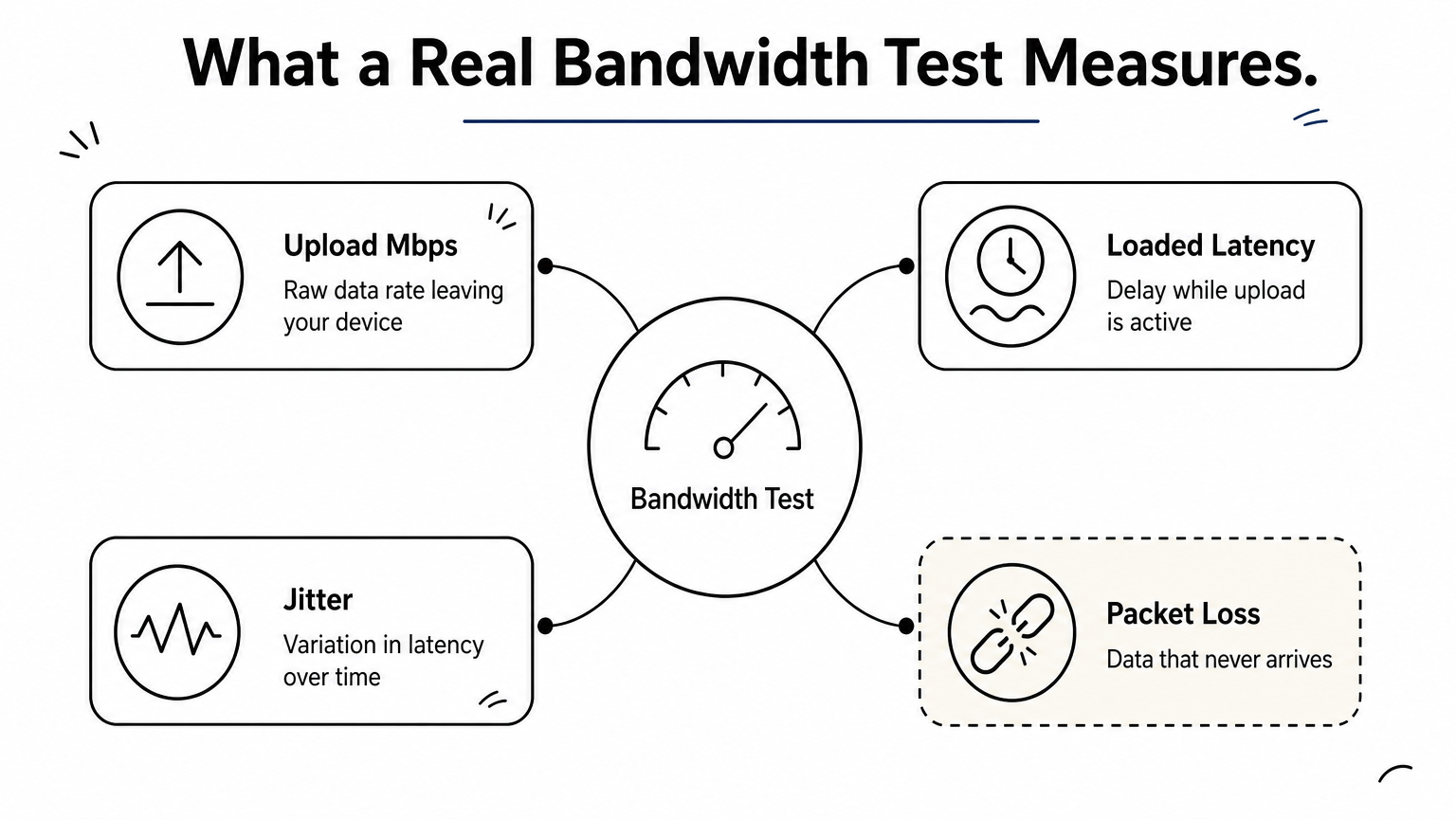
A proper bandwidth upload test goes beyond raw Mbps. Here's what each metric tells you:
| Metric | What it tells you | Why it matters for real use |
|---|---|---|
| Upload Mbps | Raw data rate leaving your device | Determines max stream/call quality you can push |
| Idle latency (ping) | Delay before any load is added | Baseline responsiveness for gaming, VoIP |
| Loaded latency | Delay while upload/download is active | Reveals bufferbloat and congestion under real use |
| Jitter | Variation in latency over time | Causes choppy audio and video, missed frames |
| Packet loss | Data that never arrives | Leads to dropped calls, pixelation, rubber-banding in games |
Why loaded latency is the metric most tests skip
Here's the catch most simple speed testers miss: your idle ping might look great at 15ms, but the moment you start uploading a large file or streaming, that number can spike to 150ms or higher. This is loaded latency, and it's the single biggest reason video calls freeze mid-sentence even when your "speed" looks fine on paper. GrandSpeed measures this specifically so you're not fooled by a good idle number. If you've ever run a high bandwidth test and still had a laggy call afterward, loaded latency and bufferbloat are almost always the culprit, not your raw upload number.
Why this matters more for some activities than others
A quick file upload can tolerate some jitter and even brief packet loss, since the file just retransmits and finishes a bit slower. Real-time traffic can't. An internet speed test gaming session needs low, stable latency far more than high Mbps, since a fast but jittery connection still causes rubber-banding. Livestreaming software like OBS or vMix needs sustained, stable upload bandwidth over minutes, not just a burst, which is why optimizing your streaming quality under realistic conditions matters more than chasing a peak number.
Step 1. Choose a reliable free bandwidth test tool
Not every speed tester gives you the full picture. Plenty of tools only report a download number and a rough ping, which won't tell you anything useful about how your connection handles a Zoom call or a Twitch stream. Picking the best bandwidth speed test for your situation means looking for a tool that measures upload separately, reports loaded latency, and doesn't hide behind ads and app downloads.
What to look for before you click start
A good free bandwidth test online should give you these without extra steps:
- Separate upload and download figures in Mbps
- Idle and loaded latency, not just a single ping number
- Jitter and packet loss reported alongside speed
- Multiple nearby test servers so you're not stuck with one distant location skewing results
- No install, account, or app required to run it
A test that only shows you download Mbps is answering a question you didn't ask.
Why server choice changes your result
GrandSpeed runs on Cloudflare's edge network and lets you test across up to five nearby servers, which matters more than people expect. A single distant server can add latency and cap your measured upload speed even if your connection is perfectly capable of more. Testing against the closest edge location gives you a realistic bandwidth test upload number instead of one dragged down by distance. If you've ever gotten wildly different results from different sites, server proximity is usually why.
Skip tools that only chase a big number
Some sites are built to show you an impressive peak Mbps figure for a few seconds and call it done. That's fine for bragging rights, but it won't tell you if your connection holds steady during a 40-minute video call or a two-hour stream. Run your free bandwidth test speed check on a tool that reports sustained metrics like loaded latency and jitter, not just a headline number, since those are what actually predict whether your call freezes or your stream drops frames.
Step 2. Prepare your device and network first
Before you run a bandwidth test upload, clear out anything competing for your connection. A single background upload, like a phone syncing photos to the cloud or a laptop backing up to Dropbox, can quietly eat 5-10 Mbps and make your test look worse than your actual plan. Getting a clean reading takes two minutes of prep and saves you from chasing a problem that doesn't exist.
Shut down anything using bandwidth in the background
Check every device on your network, not just the one you're testing from. A smart TV downloading an update or a game console patching in another room shares the same upload pipe as your test.
- Pause cloud backups (iCloud, Google Photos, Dropbox, OneDrive)
- Close streaming apps and browser tabs playing video
- Pause downloads or torrents on any device
- Ask others on the network to hold off for 60 seconds
One forgotten backup running in the background can shave 20% off your real upload number.
Test on the connection you actually use
Run the test on the same connection you rely on for calls or streaming, whether that's Wi-Fi or cellular. If you stream from a desk near the router, test there. If your gaming setup sits two rooms away, test from that spot too, since Wi-Fi signal drops fast with distance and walls. A free online bandwidth test run from the wrong room tells you nothing about the connection you'll actually be using tonight.
Plug in when it counts
Wired connections remove Wi-Fi as a variable entirely. If you're troubleshooting a specific problem, like a stream that keeps dropping frames, run one test over Ethernet and one over Wi-Fi from your usual spot. Comparing the two tells you immediately whether your ISP plan is the bottleneck or your wireless setup is. This single comparison resolves more support calls than any other troubleshooting step, and it costs you nothing but a spare cable, two minutes, and a few extra tips for a stable streaming setup.
Step 3. Run the upload speed test
Once your device and network are ready, running the actual upload bandwidth test takes seconds. Open GrandSpeed in your browser, tap start, and let it cycle through download, upload, and latency measurements without touching your device again. There's no app to install and no account to create, which is exactly the point of a free bandwidth test online done right.
What happens during the test
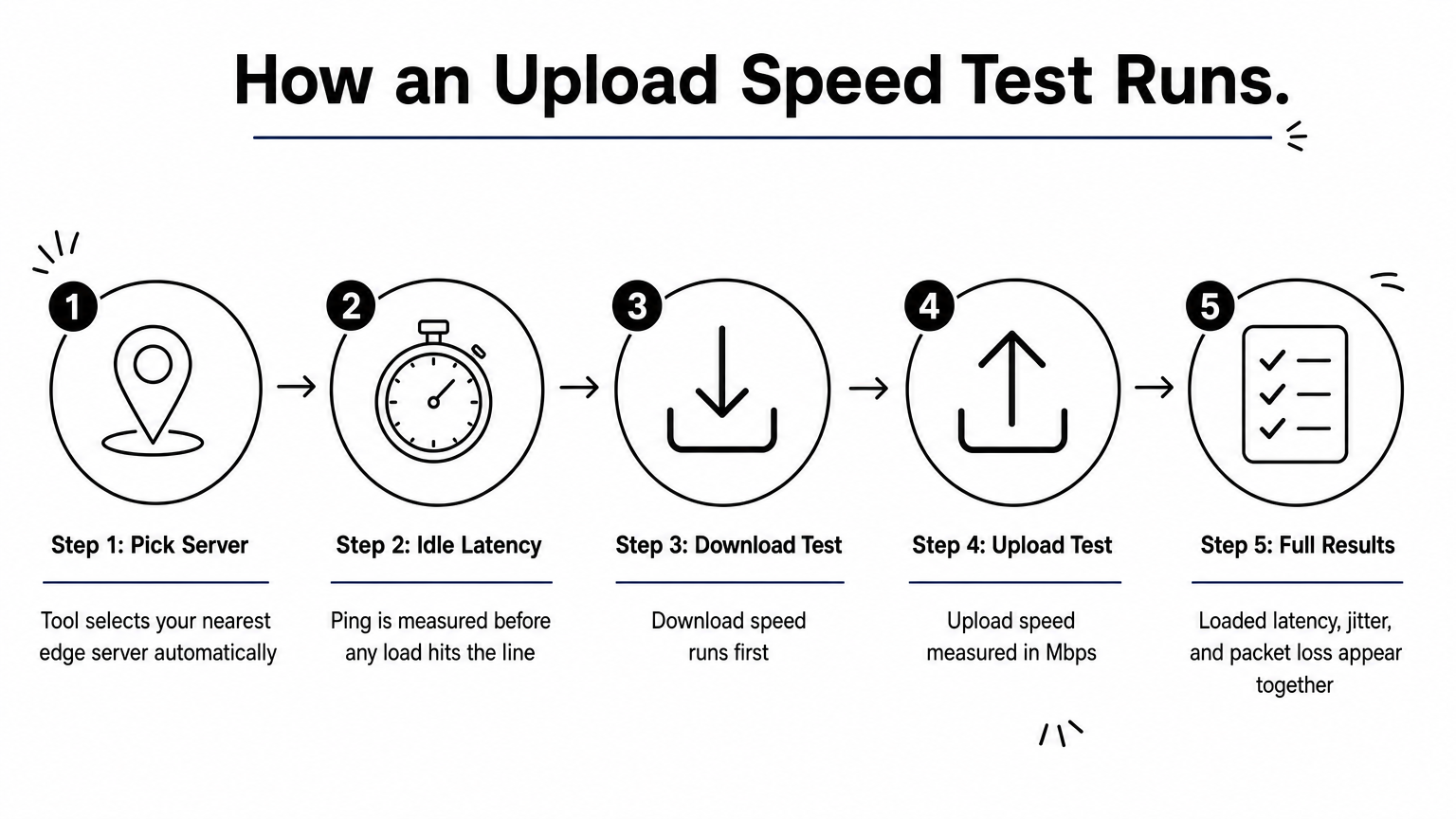
GrandSpeed pushes data to a nearby Cloudflare edge server to measure how fast your connection uploads under real load, then checks latency both before and during that load. Here's the sequence in practice:
- Click start and let the tool pick your nearest edge server automatically
- Watch idle latency get measured first, before any load hits the line
- Download speed runs next, followed by upload speed in Mbps
- Loaded latency, jitter, and packet loss get measured while the connection is under load
- Results appear in one screen, no page reload or manual refresh needed
A test that finishes in under a minute and shows every metric at once is doing exactly what it should.
Run it more than once
A single result is a snapshot, not a trend. Test your upload speed two or three times, a few minutes apart, especially if you're troubleshooting something specific like a stream that dropped frames last night. Numbers that stay consistent across runs mean your connection is stable. Numbers that swing wildly from one run to the next point to congestion, a flaky Wi-Fi signal, or an ISP issue worth calling in about.
Test at the time that actually matters
Speeds sag during peak hours when everyone on your street is streaming or gaming after dinner. Running your test only at 10am tells you nothing about the 8pm slowdown that's actually breaking your calls. Test once during your normal usage window, then again during the time you're troubleshooting, whether that's a weeknight livestream or a Sunday afternoon video call with family. Comparing those two results tells you if congestion, not your plan itself, is the real problem.
Step 4. Read your results and know what's good
Once your numbers come in, the raw Mbps figure only tells part of the story. A bandwidth test upload result needs context: what are you actually using that upload speed for? A number that's plenty for email and browsing might choke the moment you add a video call and a cloud backup running at the same time.
Upload speed benchmarks by activity
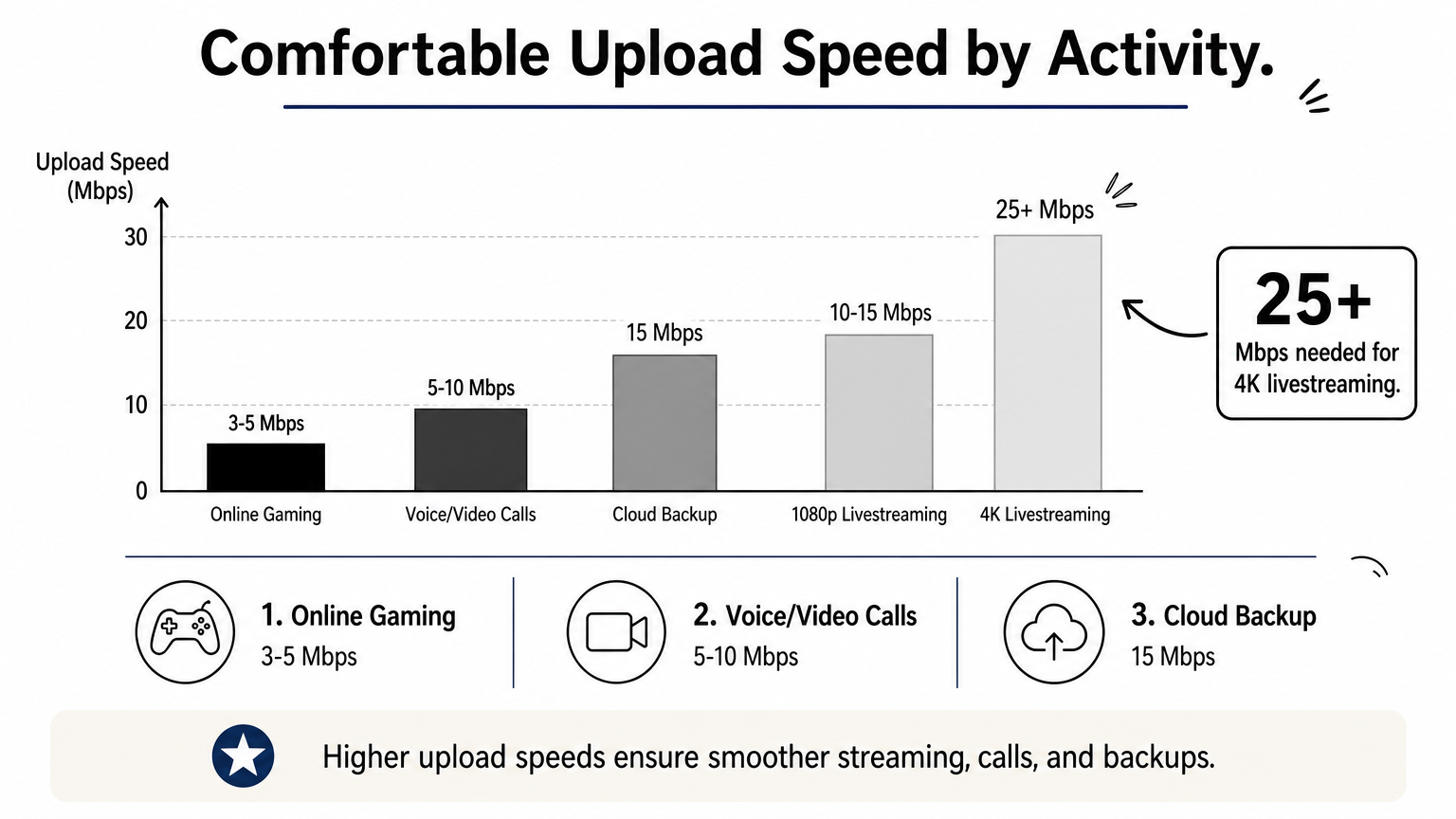
Match your result against what your actual use case needs, such as the internet connection requirements for livestreaming, not some generic "good internet" threshold.
| Activity | Minimum upload Mbps | Comfortable upload Mbps |
|---|---|---|
| Voice/video calls (Zoom, Teams) | 3 Mbps | 5-10 Mbps |
| 1080p livestreaming (Twitch, YouTube, OBS) | 6 Mbps | 10-15 Mbps |
| 4K livestreaming (vMix, XSplit, Wirecast) | 15 Mbps | 25+ Mbps |
| Cloud backup / large file sync | 5 Mbps | 15+ Mbps |
| Online gaming | 1-2 Mbps | 3-5 Mbps |
Your upload number only matters next to what you're actually trying to do with it, not against some generic "fast internet" standard.
Don't ignore latency and packet loss even if Mbps looks fine
Someone chasing a high bandwidth test score can still have a miserable call if loaded latency spikes past 100ms or packet loss creeps above 1%. Jitter above 10-15ms causes choppy audio even on a connection with plenty of Mbps to spare. If your upload number looks solid but calls still stutter, check those three metrics before blaming your ISP plan, since bufferbloat under load is a far more common culprit than raw bandwidth.
When you're still not sure what tier to buy
Unsure whether your results mean you need to upgrade? Run your numbers through GrandSpeed's Internet/ISP Speed Recommender tool, which matches your tested upload and download speeds against the minimum tier you actually need for your specific use case, so you're not overpaying for bandwidth you'll never use or underpaying for a plan that can't keep up.
Keeping tabs on your upload speed going forward
Upload speed isn't something you check once and forget. Your ISP can throttle plans, your neighborhood can get more congested, and your household can add more devices competing for the same pipe. Running a quick bandwidth test upload once a month, or right after a call freezes or a stream drops frames, keeps you ahead of problems instead of guessing at them after the fact.
Save your results somewhere simple, even a note on your phone, so you can compare numbers over time and spot a real drop instead of normal fluctuation. Testing before and after any router change, ISP upgrade, or new streaming setup gives you proof of what actually improved, not just a hunch, and if you're working from home or running a studio it's worth reviewing reliable business internet options too.
When you're ready to check where you stand right now, see how a high-speed internet bandwidth test works and get your upload, latency, jitter, and packet loss in one screen.