
What a High-Speed Internet Bandwidth Test Measures
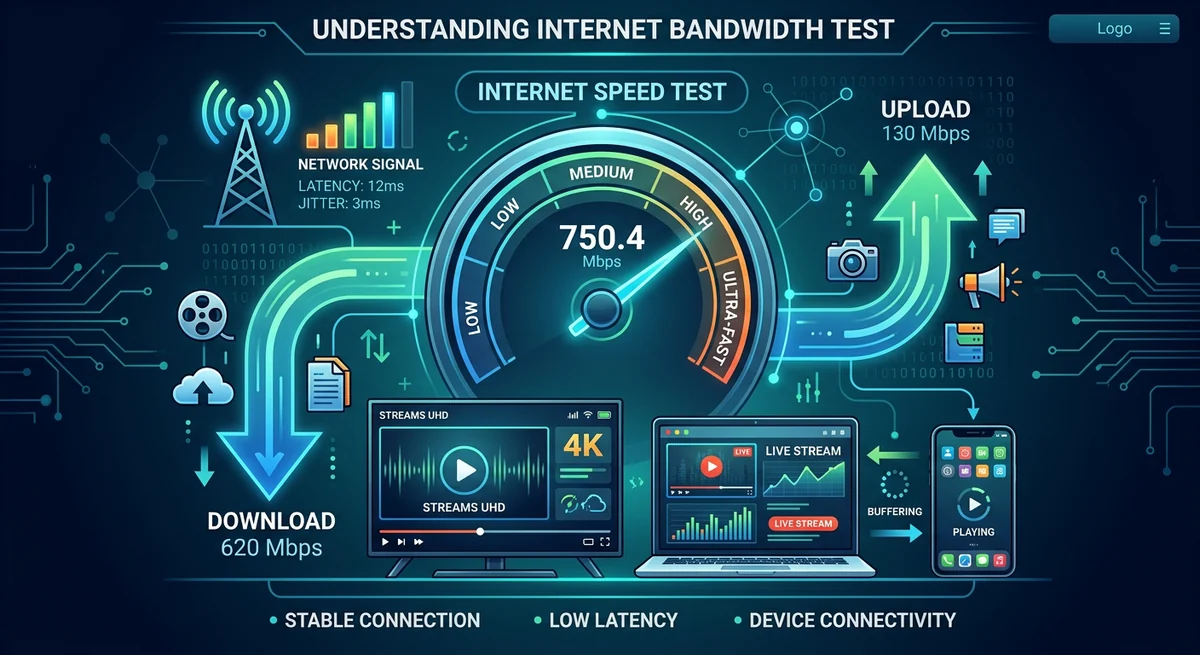
A high speed internet speed test usually shows four main numbers:
- Download speed (Mbps or Gbps): How fast data comes to you, like when you watch video, browse, or download. If you want to test download speed, any good test will do it for you.
- Upload speed (Mbps or Gbps): How fast data leaves your network, like for video calls, live streams and cloud backups. This is the best way to measure upload speed in real life.
- Latency (ping): How long data takes to go to a server and back. It matters a lot for gaming and calls.
- Jitter and packet loss: Variation and missing data that can cause stutter, lag spikes, robot-like audio, and buffering. Knowing the latency jitter packet loss meaning helps you see more than just Mbps.
What a bandwidth test does not prove:
- Your Wi-Fi works the same in every room.
- Your speed will stay the same at peak hours unless you test many times.
- A certain app or site is not having server issues.
Mbps vs Gbps: What the Numbers Mean
Mbps vs Gbps explained:
- 1 Gbps = 1000 Mbps in simple terms.
- Fiber plans often advertise 1 Gbps.
- Cable plans often advertise 300--1200 Mbps, and uploads can be lower.
Rule of thumb:
- On a gigabit plan, a wired test may show around 900+ Mbps on a good day.
- Wi-Fi tests can be much lower because of the router, device, walls, and noise.
What Is Good Bandwidth for Streaming, Work, and Gaming?
If you're asking what is good bandwidth for streaming, these ranges are useful. They are download numbers for watching video:
- HD (1080p) streaming: 5--10 Mbps
- 4K streaming: 20--35+ Mbps
- Video calls (HD): 3--6 Mbps up/down
- Cloud gaming / remote work: puts low latency and stability first, not just raw Mbps
For an internet speed test for gaming, pay more attention to:
- Latency: under 30 ms is good; under 60 ms is still playable
- Jitter: lower is better, often under 10--20 ms
- Packet loss: 0% is best
Remember: home use stacks up fast. Two 4K streams, video calls, livestreams and big downloads can overload a 100 Mbps plan at busy times.
Watching Video vs Broadcasting Live: Two Different Tests
Streaming numbers only tell half the story, because watching and broadcasting pull in opposite directions.
- Watching video is a download test. It depends on download speed and on how steadily video reaches you. Use the video playback test to check whether a stream will play in HD or 4K without buffering.
- Broadcasting live is an upload test. It depends on sustained upload speed, jitter and packet loss over minutes, not a one-off burst. Use the livestream upload monitor to check whether your connection can hold a broadcast without dropped frames.
A connection can pass one and fail the other. Cable plans often have fast download and weak upload, so 4K playback can look perfect while a livestream stalls. Test the direction that matches what you are doing.
Best Internet Speed Test Sites
There are many tools, but the best internet speed test sites have stable servers, clear methods, and steady results. Try:
- A trusted third-party online speed test such as GrandSpeed so you are not only seeing ISP numbers
- Your provider's tool for an ISP speed test vs third party check
- A test that shows jitter and packet loss if gaming or calling matters
Tip: If you want to open internet speed test fast, save two testers and compare both.
ISP Speed Test vs Third Party: Why Results Differ
The ISP speed test vs third party gap is common. It can happen because of:
- Different test servers
- Routing or peering changes
- Traffic shaping or queueing that is hard to spot
- Device or browser limits on older hardware
Best practice: test with both, then repeat at different times of day.
WiFi Speed vs Ethernet Speed
WiFi speed vs Ethernet speed is one of the biggest sources of confusion.
- Ethernet is the best baseline because it avoids wireless noise.
- Wi-Fi shows the speed you get in real rooms, but it can change a lot from one room to another.
- If wired speed is good but Wi-Fi is poor, the ISP may not be the problem. Router placement, channel crowding, or device limits may be the cause.
Bandwidth Test Accuracy Tips
Use these bandwidth test accuracy tips to cut false results:
- Use Ethernet if you can, or stand close to the router for Wi-Fi tests.
- Pause heavy use like streaming, cloud sync, game downloads, and VPNs.
- Test 3 times and average the results.
- Test at different hours, like morning, evening, and late night.
- Try another device to rule out a slow phone or laptop.
- Switch browsers or use an internet speed test app for a cleaner path.
- Pick a nearby server, then a farther one, to check route stability.
How to Test Speed on Phone
If you want to know how to test speed on phone, use this checklist:
- Turn Wi-Fi on to test home wireless, and turn Wi-Fi off to test cellular data.
- Stand in the room where you use the phone most.
- Close background apps, especially video and social apps.
- Use a trusted internet speed test app, since apps can be steadier than mobile browsers.
- Run at least two tests: one near the router and one in a weak spot.
This helps you tell the difference between ISP speed, Wi-Fi coverage, and device limits.
Speed test Results Troubleshooting
When your checked internet speed result is low, use this quick guide. This is practical speedtest results troubleshooting you can do in minutes.
1) Download is low, upload is normal
Possible causes:
- Weak Wi-Fi or signal noise
- Your device is on 2.4 GHz instead of 5 GHz or 6 GHz
- A crowded local network
Try:
- Move closer to the router
- Switch to 5 GHz or 6 GHz
- Run a wired test to compare Wi-Fi vs ISP
2) Upload is low, especially on cable
This may be normal based on your plan. Fiber vs cable internet speed often differs most in upload.
- Fiber often gives higher upload, and sometimes the same up and down speed
- Cable often has much lower upload because upstream space is shared
Try:
- Check your plan's promised upload rate
- Test with Ethernet
- Contact your ISP if upload is far below what you pay for
3) Latency or jitter is high
This can hurt gaming and calls.
Likely causes:
- Wi-Fi noise
- Bufferbloat from heavy uploads or downloads
- An overloaded router
Try:
- Use Ethernet for gaming
- Turn on QoS or SQM if your router supports it
- Stop large uploads during games or calls
4) Speed changes a lot between tests
Likely causes:
- Busy-hour congestion
- Background apps
- A poor Wi-Fi channel
Try:
- Test at the same time each day for a week
- Change the Wi-Fi channel or use auto on a modern router
- Update router firmware
Router Settings to Improve Speed
These router settings to improve speed can make a real difference:
- Update firmware for fixes and better stability
- Enable WPA3 and turn off old modes that slow things down
- Separate SSIDs for 2.4 GHz and 5/6 GHz if you want more control
- Turn on QoS/SQM if you game or video call a lot
- Use a cleaner channel, especially in apartments
- Place the router in the middle of the home and off the floor
If your router is old, it may limit speed even on a gigabit plan.
Fiber vs Cable Internet Speed in Real Life
Choosing between fiber vs cable internet speed often comes down to consistency and upload.
- Fiber: lower latency, better consistency, and stronger upload. Good for creators, remote work, and cloud backups.
- Cable: can deliver very fast downloads, but speed may dip at busy times. Upload is often the weak point.
Either can be high speed. Your daily use decides which feels faster.
Quick Checklist: Get the Most Accurate Bandwidth Test
If you want the fastest path to truth with a high speed internet bandwidth test, do this:
- Run one test wired as your baseline
- Run one test over Wi-Fi where you usually sit
- Compare ISP speed test vs third party such as GrandSpeed
- Note latency, jitter, and packet loss, not just Mbps
- Repeat the test at peak hours to spot congestion
Conclusion
A high speed internet bandwidth test is most useful when you run it often and read it the right way. Download and upload matter, but latency, jitter, and packet loss often explain how your connection really feels, especially for an internet speed test for gaming and video calls.
Use the steps above to check internet speed, improve reliability with the right Wi-Fi or Ethernet setup, and apply speedtest results troubleshooting plus smart router settings to improve speed so your network performs closer to the plan you pay for.