
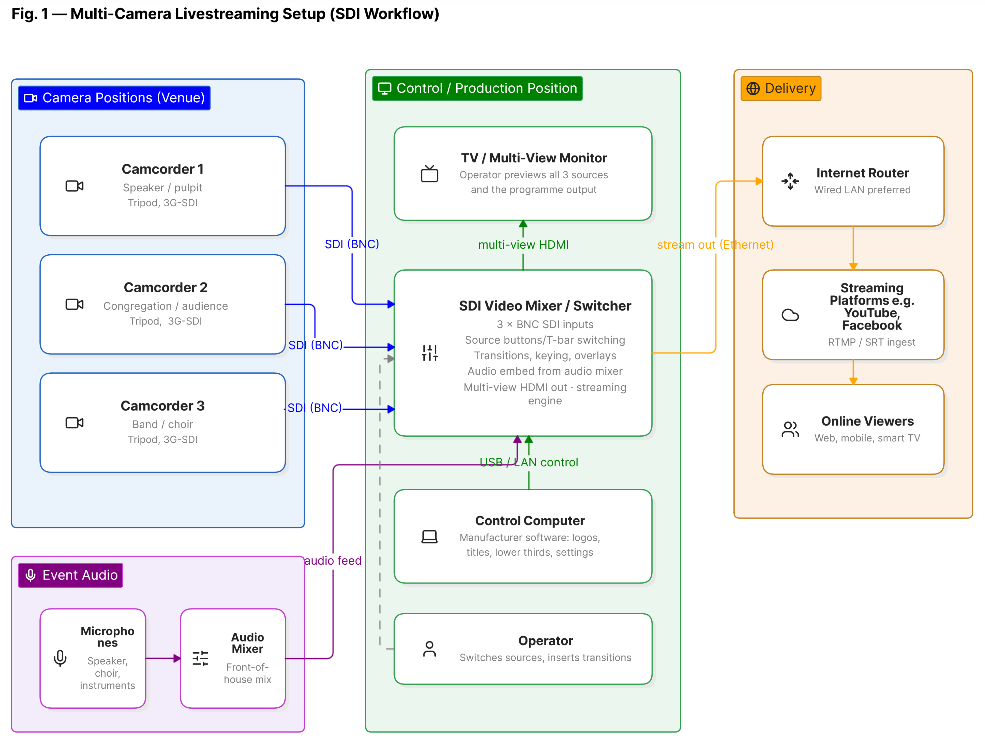
In the above example, three professional camcorders are mounted on tripods and positioned around the venue to cover angles that are considered important to the event organiser e.g. during a worship service, one camcorder might be focused on the speaker, another camcorder could be focused on the congregation while the third camcorder is focused on the band/choir.
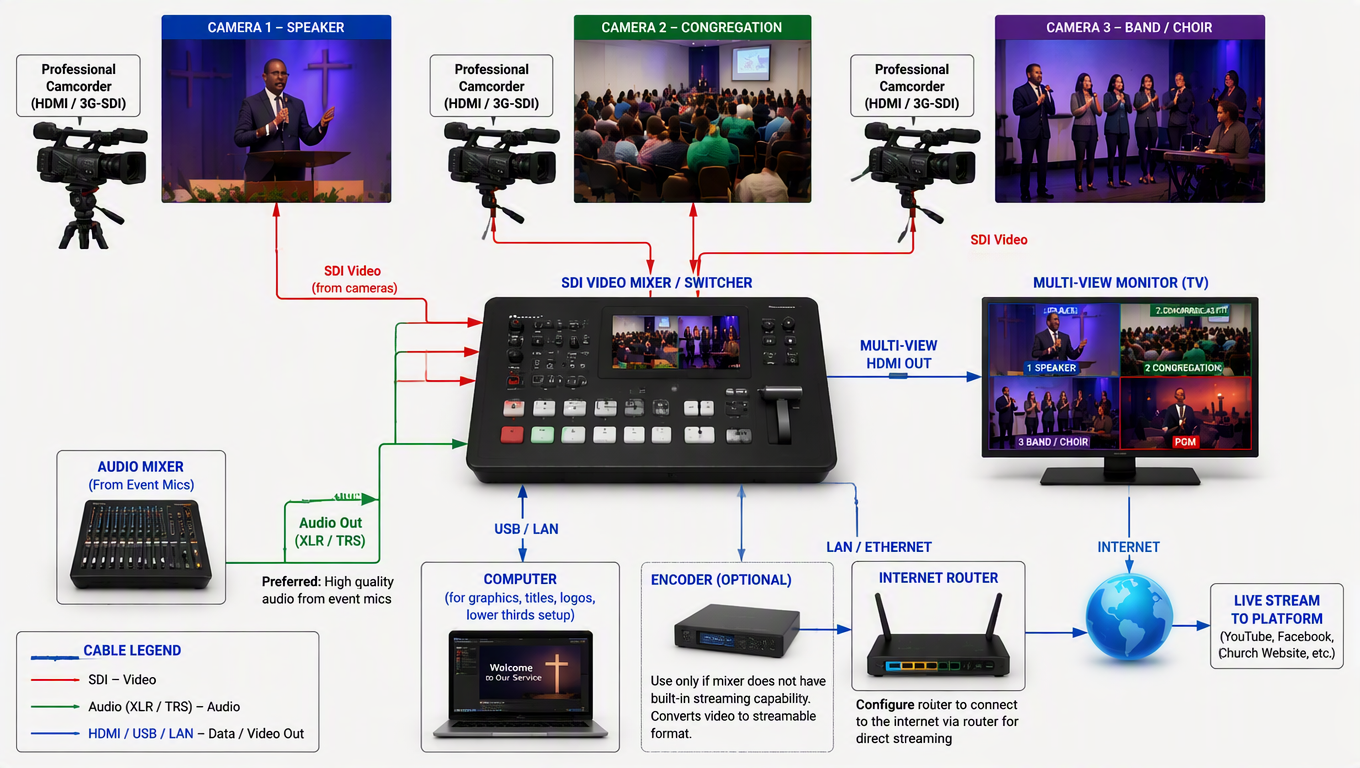
The various devices are rendered in greater detail in fig. 2 below.
Camera Connections
The camcorders in this example all have both HDMI and 3G-SDI and we choose to use the SDI connection for the advantages explained above. Hence, each camera uses SDI cabling with one end connected to a BNC connector on the camcorder and the other end of the SDI cable connected to a BNC port on an SDI mixer. The video from each camcorder is sent over the SDI cable to the mixer.
Switching and Monitoring
The video received from the three cameras can be selectively processed out of the mixer using the physical video source selection buttons or T-bar on the mixer, with suitable transitions inserted as each video source is switched out and the next video source switched in by the operator. The mixer is connected via its multi-view HDMI output to a TV serving as a monitor via which the operator can simultaneously view all video sources and thus select the next video source as deemed appropriate. For example, when the speaker is asking a question from the audience and someone in the audience responds, the operator could choose to switch the livestream view to the particular camcorder that best captures that person in the audience, done using the mixer’s video source selection buttons or t-bar.
Overlays and Audio
Prior to the start of the event, the operator may choose to upload logos, titles or other information for lower thirds all to be displayed as overlay on the video during the livestream. This could be done easily by connecting a computer to the mixer and using the software provided by the mixer manufacturer. The operator could use the audio received from any camcorder at the mixer as the main audio to send with the video in the livestream. Alternatively (and this is the preferred approach as camcorder audio quality often leaves a lot to be desired), audio is sent from the audio mixer used to cover the event, to the video mixer directly. In other words, audio is received not from the camcorders but from other microphones used at the event, which is passed through an audio mixer, onwards to the video mixer.
Internet Connection and Speed Testing
If the mixer supports direct streaming to the internet, you would need to configure the mixer to connect to your internet router. Once done, and before you actually start any livestream, it is highly advisable that you carry out a speed test to determine the upload speed available. In this case, we assume that you are using a fiber-based internet service with a decent maximum upload speed, which hopefully should be sufficient for achieving 1080p i.e. Full HD livestream.
Going Live with GrandSpeed
GrandSpeed not only performs an upload and download speed test of your internet service for you, it also makes it tremendously easy for you to configure your mixer or encoder to set your livestream resolution. This is because GrandSpeed automatically determines the maximum video resolution and bitrate at which you can livestream over your internet connection. Once you have setup your mixer/encoder in accordance with the maximum resolution indicated by GrandSpeed, you should be ready to start livestreaming to the internet!. In this case, the test result from GrandSpeed indicates that we should be able to simultaneous livestream to YouTube and Facebook at 1080p, given the upload speed available. Hence, we could setup multi-streaming directly from the encoder. With the above setup, you should be able to achieve great quality livestream to your online viewers on one or more platforms.